Short answer
To organize cables and chargers without chaos, gather them once, keep only working items you can identify, and split what remains into daily, travel, and backup gear. Give each cable a job and each kit a permanent home; do not make one giant “electronics drawer” do all the work. The goal is not a photogenic coil—it is being able to find the right charger quickly, know what it can do, and avoid keeping damaged equipment in circulation.
Cable clutter gets difficult when unlike things are treated alike. A laptop power supply, a short bedside phone cable, a camera lead, and an unknown adapter from an old device have different use patterns. Sorting by role and location is more useful than sorting only by connector shape.
Where should I start when organizing cables and chargers?
Start with one clear surface, not a shopping cart. Unplug chargers and bring together the loose cables, power bricks, adapters, extension cords, power strips, power banks, and docking accessories from around the home. Leave live, important setups alone at first—home internet, security equipment, medical equipment, or a work setup you cannot interrupt. Take a photo before changing anything that is already functioning.
Then make four passes.
- Pull out everyday equipment. This includes the phone, watch, headphones, laptop, and desk accessories you actively charge. These will become your daily zone.
- Remove damaged items. Retire cables with cracked insulation, exposed wire, loose connector ends, bent plug blades, erratic charging, or unusual heat. The U.S. Fire Administration advises replacing worn or damaged cords, avoiding pinched cords, and not running them under rugs. [1]
- Match every remaining item to a device. Ask: What does this connect to? Where is that device? When did I last use it? If you cannot answer, put it in a short-term “test” pile rather than back in storage.
- Cut obvious duplicates. A spare can be useful. Five identical short USB-C cables when you consistently use two is not a useful backup system; it is an invitation to keep searching and buying more.
This is the same decision principle that helps with other difficult household categories: decide according to a thing’s actual role, not its imaginary future. If you need help making those calls, start with our no-regret list of things to get rid of at home.
What cables and chargers should I keep?
Keep a sufficient kit for the way you actually live—not every cable that still appears intact. Think in situations: daily charging, work away from home, travel, occasional equipment, and true backup.
| Item type | Best home | A sensible amount to keep | Useful label |
|---|---|---|---|
| Daily phone, watch, and headphone cables | Where you charge: desk, bedside table, entryway | One at each genuine daily spot, plus one travel cable | “Desk,” “Bed,” or “Bag” |
| Laptop charger and cable | Workstation and travel pouch | Primary unit; a second only if you genuinely work in two places | Device name and charger wattage |
| Short USB-C cable for power bank or car | Travel kit | One or two | “Travel” |
| Camera, e-reader, old-drive, or router cable | Small backup container or with the device | One per active device | Device name |
| Unknown cable | Temporary test envelope | None after the review date | “Test by ___” |
USB-C does not mean every cable has the same capability. USB-IF explains that cables serve different purposes and that certified USB-C to USB-C cables carry markings for their power capability, such as 60 W or 240 W; many also identify data performance. [2] A cable that looks right may be fine for a phone yet unsuitable for a laptop’s full charging speed, a display connection, or a fast external drive.
Label cables for the result you need, not for a technical trivia contest: “laptop 100 W,” “SSD data,” “charge only,” or “camera.” If you do not know a cable’s rating, do not make it the only cable for a power-hungry device. For Apple devices, Apple says replacement accessories should meet applicable safety standards; it recommends MFi-certified accessories for Lightning. [3]
How do I store cables so they stay easy to use?
A practical system has three zones. One big box tends to fail because it combines three separate questions: What am I using now? What leaves the house? What do I need occasionally?
1. Create a visible daily zone
Keep everyday charging equipment in a place where you can retrieve and return it with one hand: a shallow desk drawer, a basket near the outlet, a hook below the desk, or a dedicated bedside section. Only current gear belongs here.
Make a loose loop rather than a tight knot near the connector. Leave enough slack for normal movement, but do not stretch a cable across a walkway or trap it under furniture. Google’s charger guidance specifically says not to twist or pinch USB cables and to pull the adapter—not the cable—when disconnecting from the wall. [4]
The daily zone does not need to hide every wire. It needs to make the next action easy. If you charge at a desk, a single cable held at the desk edge may be more useful than a perfectly concealed cable that has to be retrieved and unwrapped every time.
2. Build one travel kit
A small pouch stops you from stripping your home setup before every trip. Put only tested essentials inside: the appropriate wall adapter, one or two cables, any necessary adapter, and a power bank if you use one. When you come home, return the pouch as a whole rather than scattering its contents around the house.
A travel kit also makes duplicate purchases less likely. Before buying another “just in case” charger, you can see whether you already own a complete portable set. The same pause that curbs impulse spending can help with low-cost tech clutter; see the 30-day rule for buying less on impulse.
3. Put a limit on backup storage
Occasional equipment needs one labeled container or divided pouch, not a drawer that expands forever. Group cables by the device they serve—“camera,” “router,” “old drive”—rather than by their visual similarity. A cable that only works with one piece of equipment is often best stored with that equipment, in its case or box.
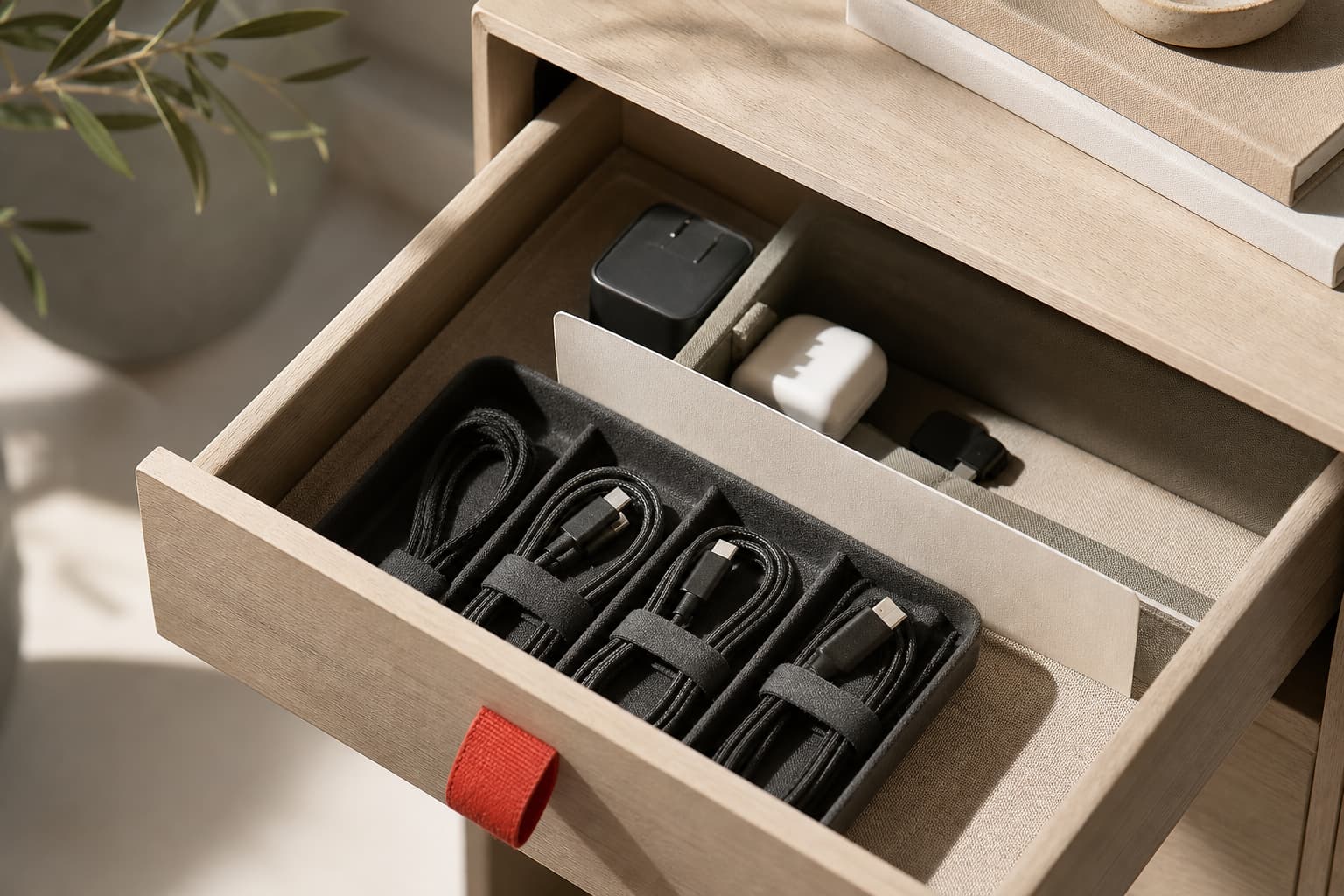
Do not compress spare cables into a dense knot. It makes the right item harder to spot and puts unnecessary strain on connectors when you pull one free. Hook-and-loop ties are useful, but so are paper bands, fabric scraps, envelopes, or cardboard dividers. The standard is simple: you should be able to see and separate each cable without unraveling the rest.
Do I need cable organizers, labels, or cable management boxes?
Buy only after you have lived with the simplified setup for a week and can name the specific friction. Perhaps cords keep falling behind the desk, or your travel kit comes apart in your bag. Before that, a shoebox, paper divider, envelope, and masking-tape label can reveal what kind of storage would actually help.
| Problem | Try this first, without buying | Buy only if needed |
|---|---|---|
| Cables tangle in a drawer | Loose loops and cardboard dividers | A shallow divided tray |
| A desk cable falls to the floor | Leave a little slack and define its route | One cable clip at the desk edge |
| Chargers drift around the home | Label the intended location | A dedicated second charger only for a real daily location |
| Tiny adapters disappear while traveling | Keep them in one pouch | A pouch with separate pockets |
| Too many plugs meet one outlet | Remove unused devices and reconsider the setup | A suitable, certified power strip with overload protection if appropriate |
Organizing cables is not a license to create a more complicated electrical chain. Do not overload outlets, extension cords, or power strips; do not plug one power strip into another; and plug major appliances directly into a wall outlet. USFA also recommends power strips with internal overload protection. [1] An extension cord is a temporary answer, not a permanent fix for an inconvenient room layout.
If a cable or adapter is damaged, gets unusually hot, is wet, or charges unreliably, do not solve the problem with a nicer storage box. Stop using it and replace it with a compatible accessory. Google warns that damaged charging equipment or charging in the presence of moisture can cause overheating, injury, or device damage, and says chargers and connected devices should be ventilated while in use. [4]
What is a no-purchase experiment I can try today?
Try a 30-day unknown-cable quarantine.
- Take an envelope, bag, or small box and label it “Test by [date 30 days from now].”
- Put every cable or adapter you cannot identify into it—provided you are not ready to recycle or donate it yet.
- Keep only your daily kit, travel kit, and clearly labeled backups outside the container.
- If you need something from the container, test it, label it, and assign it a zone. If you do not need it by the date, check local e-waste options or pass it to someone who can name a use for it.
This is not based on the idea that every unused thing is waste. It replaces an anxious, permanent “maybe” with evidence from your own month. You learn what your household really reaches for.
How do I keep cables organized as new devices arrive?
Do not let a new cable enter the drawer by default. When you unbox a device, ask three questions: What does this cable serve? Does it replace an existing cable? Where will it live? If it duplicates a working cable, give it a role immediately—travel or backup—or do not keep it.
Do a five-minute seasonal check: wipe dust around the outlet area, inspect bends and connectors, remove damaged gear, and return the travel pouch to its place. If delayed sorting tends to spread through the home, use the small-category approach in our step-by-step home decluttering plan.
Unplugging some idle equipment can make sense when it does not disrupt your routine or conflict with manufacturer guidance. The U.S. Department of Energy includes cell-phone chargers among equipment that can be unplugged when not in use. [5] But do not turn this into a ritual that makes your system harder to maintain. A good home setup reduces decisions; it does not create a daily checklist you resent.
When this doesn’t apply
Do not use this method casually on cables that support critical infrastructure: medical equipment, security systems, a server, remote-work internet, or aquarium equipment. Follow the device manufacturer’s instructions and understand what will happen before disconnecting or relocating anything.
It is also not a substitute for electrical work. If an outlet is hot, sparks, grips plugs loosely, repeatedly trips a breaker, or you constantly lack permanent outlets, do not compensate with layers of adapters and extension cords. Ask a qualified electrician to assess the setup.
Cable organization is not about achieving a pristine before-and-after photograph. It is a small system that lets you find the right charger in seconds, understand what it is for, and keep damaged or anonymous gear from taking up space in your home.
Sources
- Appliance and Electrical Fire SafetyU.S. Fire Administration
- Cables and ConnectorsUSB Implementers Forum
- About Apple USB power adaptersApple Support
- Safety & Regulatory Guide for 30W USB-C ChargerGoogle Pixel Help
- Home Energy ChecklistU.S. Department of Energy
Short answers
How should I store cables so they do not break?
Make wide, loose loops, avoid tight knots near connectors, and do not pinch cords under furniture or doors. Replace a cable that is cracked, unusually hot, or intermittently charging instead of trying to keep it alive with tape.
How many chargers should I keep at home?
Keep one for each place where you genuinely charge every day, plus one complete travel kit. A second laptop charger is useful only if you routinely work in a second location.
Can chargers be stored in a closed drawer?
Yes, when they are unplugged and dry. During charging, however, power adapters need ventilation, so do not cover them with bedding, clothing, or a closed cable-management box.
How can I tell what an unknown USB-C cable is for?
Test it with the relevant device, then label the outcome, such as “laptop 100 W” or “charge only.” USB-C describes the connector shape, not necessarily the cable’s charging or data capability.